Getting a VR headset connected to a PC can look more complicated than it really is. The important part is knowing which connection method your headset supports: a USB cable, a dedicated DisplayPort/HDMI connection, or wireless streaming over Wi-Fi.
For standalone headsets such as Meta Quest and PICO, the usual options are wired PC VR or wireless streaming. Traditional PC VR headsets generally connect directly to the computer's graphics card through DisplayPort or HDMI and may also require USB for tracking or other functions. The exact steps vary by model, but the basic process is straightforward once the headset, PC, software, and connection method are matched correctly.
What You Need Before Connecting a VR Headset to a PC
Before plugging anything in, check that your computer and headset are compatible. PC VR is more demanding than simply displaying a desktop screen because the PC has to render two views and maintain low-latency tracking.
You will generally need:
- A VR headset that supports PC VR
- A compatible Windows PC, unless your particular headset officially supports another operating system
- A suitable graphics card
- The headset manufacturer's PC software, where required
- A compatible USB, DisplayPort, HDMI, or other supported cable for wired connections
- A reliable 5 GHz or newer Wi-Fi network for supported wireless setups
- Steam and SteamVR if you intend to play SteamVR games
For example, Meta's current documentation says Meta Quest PC VR through Horizon Link requires the Meta Horizon Link application, an updated Quest headset, a Windows computer meeting the minimum requirements, and either a USB-C connection or Wi-Fi for Air Link. Meta recommends a USB-C 3.2 cable capable of at least 5 Gb/s for Link.
PICO likewise provides PICO Connect for connecting supported PICO headsets to computers and accessing PC desktops or PC VR content. Its current documentation lists Windows and macOS support for desktop access, while SteamVR gaming is supported on Windows.
How to Connect a VR Headset to a PC With a Cable
A wired connection is usually the simplest place to start because you do not have to troubleshoot wireless networking at the same time.
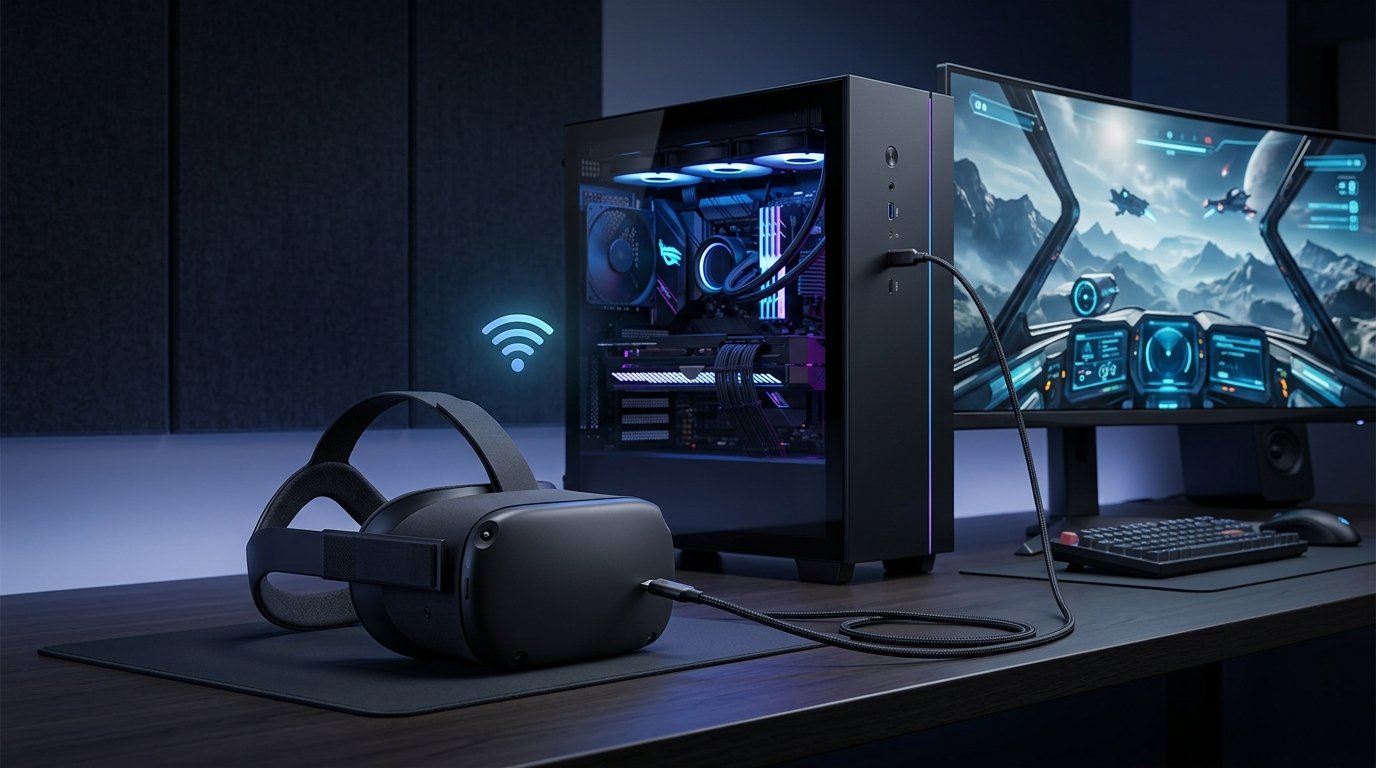
The exact connector depends on the headset. A standalone headset such as a Meta Quest can use USB-C for PC VR, while many dedicated PC VR headsets use DisplayPort or HDMI for video and may use USB for additional communication or power.
Step 1: Check Your PC's Ports
Look at the back of the computer rather than assuming every USB-C or HDMI port will work.
For a dedicated PC VR headset, the video cable should normally connect to the discrete graphics card, not an unused video output on the motherboard. This matters because the graphics card is responsible for rendering the VR experience.
For a Meta Quest headset using Link, Meta specifies a USB 3 connection to the PC and recommends a USB-C cable capable of at least 5 Gb/s.
Step 2: Install the Required PC Software
Install the software designed for your headset before attempting to launch PC VR.
For Meta Quest headsets, this is Meta Horizon Link. Meta's current instructions require the application on the Windows PC and an updated headset.
For supported PICO devices, install PICO Connect from PICO's official software page. PICO describes Connect as software for accessing a computer desktop and playing supported PC VR games through SteamVR.
Dedicated PC VR headsets may use their own manufacturer's software or platform-specific tools, so follow the instructions for your particular model.
Step 3: Connect the Cable
Connect the headset to the appropriate PC port and turn the headset on.
With a Meta Quest headset, Meta's current procedure is to connect the USB cable, open the headset's Quick controls, select Link, choose the connected computer, and then select Launch.
If the manufacturer's PC application reports that the connection is incompatible or unusually slow, check the cable and USB port. Meta provides a USB connection test inside its PC software for compatible Quest setups.
Step 4: Start Your PC VR Platform
Once the headset is recognized, launch the software required for the game or application.
For SteamVR titles, install Steam and SteamVR on the PC. Steam's current requirements for Steam Link also specify a Windows 10 or newer PC for supported wireless VR configurations.
You can then launch a compatible VR game from your library. The computer performs the rendering while the headset displays the resulting VR images and sends tracking and controller information back to the PC.
How to Connect Meta Quest to a PC Wirelessly
If you have a compatible Meta Quest headset, you do not necessarily need a cable.
Meta's Air Link feature allows supported Quest headsets to connect to a Windows PC over Wi-Fi. Meta recommends a 5 GHz Wi-Fi network for Air Link.
The basic process is:
- Install and open Meta Horizon Link on the Windows PC.
- Make sure the headset and PC are connected to the appropriate network.
- Put on the Quest headset.
- Open Quick controls.
- Select Link.
- Enable Use Air Link.
- Select your PC.
- Choose Pair.
- Compare the pairing code shown on the headset with the code on the computer.
- Confirm the pairing on the PC.
- Select Launch in the headset.
The exact menu names can change with headset software updates, so the manufacturer's current instructions should take priority.
Wireless PC VR removes the physical cable, which can make room-scale play more convenient. The trade-off is that network quality becomes part of the VR experience. Wireless congestion, poor router placement, or a weak connection can contribute to latency, compression, or interruptions.
How to Use Steam Link for Wireless PC VR
Another option for supported headsets is Steam Link.
Steam says Steam Link can wirelessly stream compatible Steam VR games from a Windows PC to supported Meta Quest, PICO, and HTC headsets. Its current requirements include a PC running Steam and SteamVR, a 5 GHz Wi-Fi network using at least Wi-Fi 5, and a wired connection between the PC and router.
The setup is relatively simple:
- Install Steam and SteamVR on the PC.
- Connect the PC to the router using Ethernet.
- Connect the VR headset to the same 5 GHz or better wireless network.
- Install Steam Link on the supported headset.
- Open Steam Link.
- Follow the pairing instructions.
- Launch a compatible SteamVR game.
Steam's documentation currently lists Meta Quest 2, Quest 3, and Quest Pro, along with several PICO and HTC headsets, among supported devices. Compatibility can change with software updates, so check the current Steam requirements before publishing or recommending this method for a particular headset.
Steam Remote Play and VR requirements
How PICO Headsets Connect to a PC
PICO users have a manufacturer-supported option called PICO Connect.
PICO describes Connect as a tool that can provide access to the computer desktop from a compatible headset and stream supported PC VR games through SteamVR. Its current software page lists PICO Connect versions for Windows and macOS, while PC VR gaming through SteamVR is supported on Windows.
For a typical setup:
- Install PICO Connect on the PC.
- Install or update the corresponding headset software.
- Connect the headset by the supported wired or wireless method.
- Open PICO Connect.
- Allow the software to detect the headset.
- Select the desktop or PC VR function you want to use.
- Launch SteamVR when playing compatible PC VR games.
PICO's current published PC requirements for Connect include Windows 10 version 22H2 or newer, at least 8 GB of RAM, and a graphics card around the level of an NVIDIA GTX 1060 6GB or AMD RX 480 or better. These requirements are specific to the listed PICO Connect setup and should not be treated as universal requirements for every VR headset.
PICO Connect official software page
What If Your VR Headset Uses DisplayPort or HDMI?
Not every VR headset works like a Meta Quest.
Some PC-focused VR headsets are designed to receive video directly from the computer's graphics card. In those cases, you may need:
- DisplayPort
- HDMI on supported models
- USB
- A power connection
- A manufacturer's tracking or headset application
The most important rule is to follow the headset manufacturer's port requirements. Do not assume that a USB cable can replace a DisplayPort or HDMI connection if the headset was designed for direct video input.
Also check your graphics card before buying or connecting the headset. A laptop or desktop can have HDMI or USB-C ports without necessarily supporting the particular VR video mode required by the headset.
How the PC and VR Headset Work Together
Connecting a headset to a PC does more than mirror the computer screen.
During PC VR, the computer renders the game or application. The headset provides information about the user's head and controller movements, while the PC continuously generates updated images for the headset.
With a wired headset, much of this information travels through physical cables. With wireless systems such as Air Link or Steam Link, the PC compresses and streams the VR image over the network while receiving input from the headset. Steam describes its Remote Play technology as real-time video and audio streaming with input sent back to the host PC.
This explains why a fast gaming PC alone is not enough for a good wireless VR setup. The network connection also needs to be suitable for low-latency streaming.
Wired vs. Wireless VR: Which Should You Choose?
For troubleshooting, a wired connection is often the best starting point. Once the headset works correctly over a cable, wireless streaming becomes easier to diagnose because you know the basic headset and PC configuration is functioning.
Common Problems When Connecting a VR Headset to a PC
The PC Does Not Detect the Headset
First, check the physical connection. Try another compatible USB port or cable if the headset uses USB.
For Meta Quest Link, Meta specifically recommends checking the USB connection and provides a built-in connection-speed test.
Also make sure the manufacturer's PC application is installed and running.
The Headset Connects but PC VR Does Not Start
A headset being visible to Windows does not necessarily mean PC VR is ready.
Check that the manufacturer's VR software is running and that the required PC VR platform, such as SteamVR, is installed when the game requires it.
Wireless VR Is Laggy
Wireless VR depends heavily on the local network.
For Steam Link, Valve currently recommends a 5 GHz Wi-Fi connection using Wi-Fi 5 or better and a wired Ethernet connection between the PC and router.
Moving the router closer to the play area, reducing wireless congestion, or connecting the PC to the router with Ethernet can help. Actual results depend on the network, hardware, software, and environment.
The Cable Works for Charging but Not PC VR
This is a common source of confusion with USB-C.
USB-C describes the connector shape, not the capabilities of the cable. A USB-C cable may support charging while lacking the data throughput required for a particular PC VR connection.
Meta's current documentation specifically recommends a USB-C 3.2 cable capable of at least 5 Gb/s for Link.
SteamVR Cannot Find the Headset
Check the headset manufacturer's PC software first. Then confirm that Steam and SteamVR are installed and updated.
If you are using wireless Steam Link, also verify that the headset and PC are connected through the required network configuration. Valve's current Steam Link documentation provides the supported hardware and networking requirements.
Mistakes to Avoid
A few simple mistakes can turn a straightforward setup into a frustrating one.
Using the wrong port: A video cable connected to the motherboard instead of the discrete GPU may prevent a PC VR headset from receiving the expected graphics output.
Assuming every USB-C cable is equivalent: Connector shape does not guarantee the required data speed.
Ignoring PC requirements: A computer that handles ordinary games well may still lack the GPU performance or connectivity needed for a particular VR application.
Relying on weak Wi-Fi: Wireless VR is sensitive to network conditions. A stable local connection is more important than simply having an internet connection.
Installing unnecessary software: Start with the official software for your headset and the platform required by the game. Adding multiple streaming applications can make troubleshooting harder.
Assuming every headset uses the same method: Meta Quest, PICO, HTC Vive, Valve Index, PlayStation VR2 on PC, and other headsets can have different hardware and software requirements.
Is a Gaming PC Required for Every VR Headset?
No. Some modern VR headsets are standalone devices and can run applications without a computer.
However, connecting a standalone headset to a PC can provide access to PC VR games and applications that require the computer's processing power. Meta Quest and PICO are examples of headset families that support PC connectivity on compatible models.
A dedicated PC VR headset, on the other hand, may depend on the computer for most or all of its rendering and operation.
The distinction is useful when shopping for a headset: standalone VR and PC VR are not mutually exclusive. Some headsets can do both, while others are designed primarily for one type of experience.
The Best Way to Get Started
If you are connecting a VR headset to a PC for the first time, start with the manufacturer's official wired method whenever one is available. It removes many variables and makes it easier to confirm that the PC, headset, cable, and software are communicating correctly.
Once that works, wireless options such as Meta Air Link or Steam Link can be added if your headset supports them. For wireless VR, give particular attention to the network between the PC, router, and headset rather than focusing only on internet speed.
The key is to treat headset compatibility, PC hardware, connection type, and software as one system. When all four match, connecting a VR headset to a PC is usually much easier than it first appears.
Frequently Asked Questions
Can I connect any VR headset to a PC?
No. PC compatibility depends on the headset model, operating system, connection method, graphics hardware, and required software. Check the manufacturer's current PC compatibility requirements before purchasing or setting up a headset.
Is it better to connect a VR headset to a PC with a cable or Wi-Fi?
A cable is a good starting point because it eliminates wireless-network variables. Wi-Fi can provide greater freedom of movement, but the experience depends on the quality and configuration of the local network.
Can Meta Quest connect to a PC without a cable?
Yes, compatible Meta Quest headsets can use Air Link for wireless PC VR. Meta currently specifies a suitable 5 GHz Wi-Fi network for Air Link.
Do I need SteamVR to connect a VR headset to a PC?
Not necessarily. The requirement depends on what you are trying to use. Some manufacturer software can provide a PC connection or desktop access without SteamVR, while SteamVR is required for compatible SteamVR games.
Why does my VR headset charge but not connect to my PC?
The cable may support charging without providing the required data connection or bandwidth. Try a known-compatible data cable and USB port, then check the headset manufacturer's connection test or PC software.
Conclusion
Learning how to connect a VR headset to a PC comes down to identifying the right connection for the particular headset. Meta Quest users can choose between wired Link and supported wireless options such as Air Link, while PICO users can use PICO Connect for supported PC and PC VR functions. Other PC VR headsets may require direct DisplayPort or HDMI connections.
When something goes wrong, start with the basics: compatible hardware, the correct port, the correct cable, current manufacturer software, and the required PC VR platform. For wireless setups, add network quality to that checklist. Following those steps gives you a much clearer path from an unrecognized headset to a working PC VR setup.