You have a VR headset, a gaming PC, and a Steam library full of games—but getting from the Steam store to actually playing inside VR can be confusing. The good news is that the process is usually straightforward once your headset is compatible and SteamVR is installed.
To play SteamVR games, you generally need a compatible VR headset, a VR-capable PC, Steam, and SteamVR. You then connect the headset to the computer using a supported wired or wireless method, start SteamVR, and launch a compatible VR title. Valve's SteamVR platform supports hardware including Valve Index, HTC Vive, Oculus Rift, Windows Mixed Reality headsets, and other supported PC VR devices.
What Is SteamVR?
SteamVR is Valve's software platform for running VR experiences through Steam. It acts as a bridge between your computer, VR headset, controllers, and compatible games.
Instead of every VR game having to communicate directly with every headset, SteamVR provides a common environment for supported PC VR hardware. It also includes features such as VR status monitoring, controller support, room boundaries through Chaperone, and access to a virtual Steam dashboard.
This means that when you purchase a Steam game marked for SteamVR, the game can use the SteamVR environment to communicate with supported VR hardware.
What You Need to Play SteamVR Games
Before installing anything, make sure your setup meets the basic requirements.
You will need:
- A Steam account
- A VR headset supported by SteamVR
- A compatible PC
- The Steam desktop application
- SteamVR
- Compatible VR controllers when required by the game
- A suitable wired or wireless connection between the headset and PC
Your PC also needs enough graphics performance for the individual VR game. Valve's current SteamVR listing gives a baseline of a GTX 970 or Radeon R9 290-class GPU, 4 GB of RAM, and compatible USB and video connectivity, while individual games can require substantially more powerful hardware.
The important distinction is that SteamVR requirements are not necessarily the same as a particular game's requirements. Always check the VR game's own system requirements before assuming your computer can run it.
Step 1: Install Steam on Your PC
If Steam is not already installed, download and install the desktop Steam client and sign in to your account.
Steam is where you purchase, download, update, and launch your games. Once the client is installed, search the Steam store for the VR title you want to play.
Pay attention to the game's VR Support information. A game may support SteamVR, OpenXR, or another VR runtime, and not every VR title supports every headset or controller configuration.
Step 2: Install SteamVR
After Steam is installed, install SteamVR.
Valve provides SteamVR through Steam, and its official store listing identifies it as the software used to play VR games with supported headsets and controllers.
Once installed, SteamVR can be launched from your Steam library. Depending on your headset, you may also need the manufacturer's own software or setup application.
For example, a headset may need its manufacturer's software running before SteamVR can communicate correctly with the hardware.
Step 3: Connect Your VR Headset
The connection method depends on the headset.
Wired PC VR
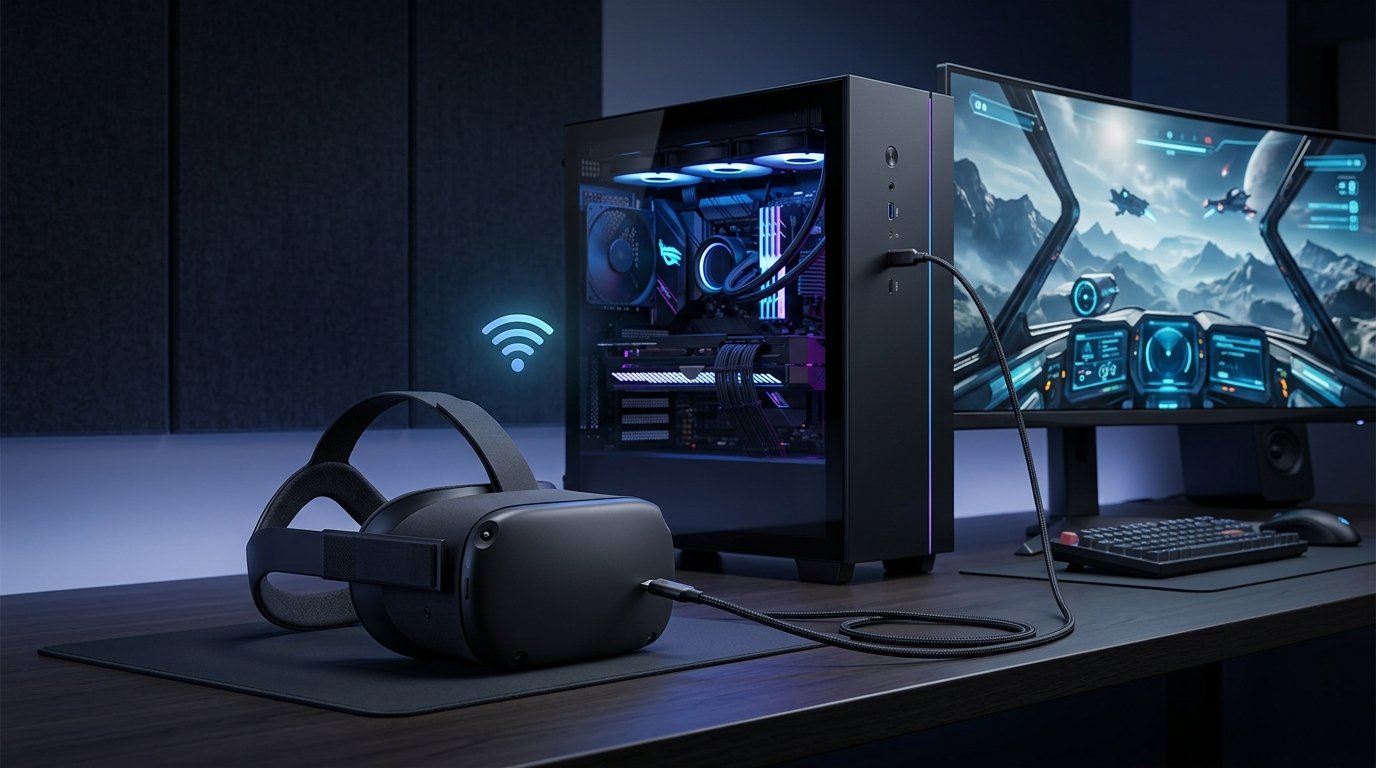
Some PC VR headsets connect directly to the computer using DisplayPort or HDMI, sometimes alongside USB and power connections. The exact ports depend on the headset.
For example, Valve's Steam support documentation for HTC Vive describes a VR-ready computer with an available HDMI connection on the graphics card and a USB port.
If your desktop has a dedicated graphics card, make sure the headset's video connection is connected to the appropriate graphics output rather than simply plugging it into an unrelated motherboard port.
Wireless PC VR
Some standalone headsets can stream PC VR games wirelessly.
Valve's Steam Link app supports wireless SteamVR streaming on specific Meta Quest, PICO, and HTC headsets. Steam's current requirements include a Windows 10 or newer PC running Steam and SteamVR, a compatible GPU, and a 5 GHz Wi-Fi 5 or better wireless router.
For the best results, Valve recommends a wired connection between the PC and router for its Steam Link VR setup, with the headset connected wirelessly to the same network.
Step 4: Set Up Your Play Area
Before starting a game, clear enough space for the type of VR experience you intend to use.
A seated VR game requires relatively little physical space, while room-scale games can require considerably more.
Valve's Index setup documentation recommends clearing the play area of obstacles and keeping hazards such as stairs and windows away from the active space. For its room-scale setup, Valve specifies at least 2 m × 1.5 m of free space.
The exact space requirements can vary by headset and game, so follow your headset's setup instructions.
Step 5: Start SteamVR
With the headset connected and recognized by the computer, open SteamVR.
SteamVR should detect the connected headset and available controllers. Its status interface is designed to show the condition of the VR system and connected hardware.
If SteamVR reports that the headset or controllers are not detected, do not launch the game yet. Fix the hardware or software connection first.
A successful SteamVR startup generally means the PC, headset, tracking system, and controllers are communicating correctly.
Step 6: Find a SteamVR-Compatible Game
Open the Steam store or your Steam library and look for the game's VR support information.
Not every Steam game is a VR game. Some titles are designed specifically for VR, while others offer VR as an additional mode. The game's store page should tell you which VR platforms or headsets are supported.
This distinction matters because owning a VR headset does not automatically make every Steam game playable in VR.
If a game lists SteamVR under its VR support, it is designed to work with that VR runtime when your hardware meets the developer's requirements.
Step 7: Launch the Game
Once SteamVR is running and your headset is detected, select the compatible game from Steam and click Play.
Some VR games may give you a choice between launching the normal desktop version and the VR version. If Steam provides a specific VR launch option, choose it.
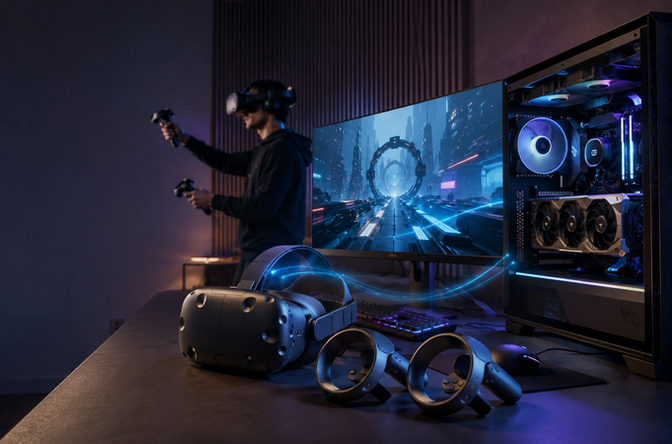
The game will then use the computer to render the VR environment while your headset and controllers provide the visual display and user input.
The first launch can take longer than expected because the game may need to initialize VR components or create its initial settings.
How to Play SteamVR Games Wirelessly With Steam Link
If you have a supported standalone headset, Steam Link can eliminate the physical connection between the headset and PC.
Valve's current Steam Link documentation supports Meta Quest 2, Quest 3, Quest Pro, several PICO models, and HTC Vive Focus/XR headsets. The exact supported list and required headset software versions can change, so check Valve's current requirements before setup.
The general process is:
- Turn on your PC.
- Open Steam and sign in.
- Make sure SteamVR is installed.
- Connect the PC to the router.
- Connect the headset to the same wireless network.
- Install Steam Link on the supported headset.
- Open Steam Link.
- Follow its on-screen pairing instructions.
- Select the PC when it appears.
- Start SteamVR and launch a compatible game.
Valve currently specifies a 5 GHz Wi-Fi connection and Wi-Fi 5 minimum for Steam Link VR, with Wi-Fi 6 or Wi-Fi 6E recommended. It also lists specific GPU and headset requirements.
Wireless VR therefore depends on more than your internet connection. The quality of the local connection between your PC, router, and headset is particularly important.
How to Check Whether a Steam Game Supports VR
Before buying a game, open its Steam store page and look for its VR Support information.
You should check:
- Whether SteamVR is supported
- Which headsets are supported
- Whether room-scale VR is available
- Whether standing or seated play is supported
- Whether motion controllers are supported
- The game's minimum and recommended PC requirements
Valve's Steam support documentation notes that compatible titles identify supported VR hardware under their VR Support information.
This is especially important with older games. A title may technically support VR but still have limited controller compatibility or require a particular setup.
What If Your PC Is Not Powerful Enough?
VR performance depends heavily on the game and the hardware being used.
Valve's SteamVR listing currently gives a minimum baseline around the GTX 970/Radeon R9 290 class, but this should not be treated as a universal requirement for every modern VR game. Individual games publish their own specifications, and demanding titles can require much more powerful hardware.
If your PC struggles with a VR title, reducing graphics settings may help. However, performance problems in VR can be more noticeable than ordinary monitor gaming because inconsistent rendering can affect the comfort and responsiveness of the experience.
Before buying a demanding VR game, compare your computer's CPU and GPU with the requirements listed on that game's Steam page.
Common SteamVR Problems and Fixes
SteamVR Does Not Detect the Headset
Start with the physical connection.
For a wired headset, check the USB, HDMI, or DisplayPort connections required by the headset. If it uses a dedicated graphics card, verify that the video cable is connected to the graphics card.
Then restart the headset, Steam, and SteamVR.
Updating graphics drivers is also part of Valve's recommended setup process for supported PC VR hardware.
SteamVR Opens but the Game Does Not Enter VR
Check the game's VR support information and confirm that SteamVR is running before launching the title.
Some games use different VR runtimes or provide multiple launch options. If the title supports SteamVR, make sure SteamVR is installed and recognized by the headset.
Wireless VR Has Lag or Visual Problems
Wireless streaming adds the local network to the chain between the PC and headset.
For Steam Link, Valve specifies 5 GHz Wi-Fi with Wi-Fi 5 as the minimum and recommends Wi-Fi 6 or Wi-Fi 6E. Valve also recommends connecting the PC to the router using Ethernet for its recommended setup.
If wireless performance is poor, check the router's location, wireless band, PC connection, and network congestion.
Controllers Are Not Working Properly
First check whether the game officially supports your controllers.
SteamVR supports tracked controllers, but individual games can have different control requirements. Valve's Steam support documentation recommends checking the VR Support information on individual game pages for compatibility details.
If the controllers work in SteamVR but not inside a particular game, the problem may be related to that game's input configuration rather than the headset itself.
Wired or Wireless: Which Is Better for SteamVR?
There is no single answer for every setup.
If you are troubleshooting a new setup, wired PC VR is a useful starting point when your headset supports it. Once the headset works correctly, you can experiment with wireless streaming.
Wireless is particularly attractive for room-scale gaming because there is no headset cable running back to the PC. However, network conditions become part of the overall VR setup.
Tips for a Better SteamVR Experience
Keep your graphics drivers updated and make sure the headset software is current. Valve specifically recommends current graphics drivers in its hardware setup documentation.
Also give yourself enough physical space and keep cables, furniture, pets, and other obstacles away from the active play area. Even technically perfect VR hardware cannot compensate for an unsafe room.
Finally, check each game's requirements individually. A PC that handles one SteamVR title comfortably may not deliver the same performance in another title with higher graphics or processing demands.
Frequently Asked Questions
Can I play Steam games in VR with any VR headset?
No. The headset must be supported by the game's VR runtime and by the relevant PC software. SteamVR supports many PC VR headsets, but individual games can have additional compatibility requirements.
Do I need SteamVR to play every VR game on Steam?
No. SteamVR is used for games that support it, but some VR games can use other runtimes such as OpenXR. Always check the individual game's VR support information.
Can I play SteamVR games without a cable?
Yes, if your headset and setup support wireless PC VR. Valve's Steam Link provides wireless SteamVR streaming for supported Meta, PICO, and HTC headsets.
Does my PC need to be connected to the internet while playing SteamVR?
Steam and individual games can have their own online or offline requirements. For wireless streaming, the headset and PC also need an appropriate local network connection. Valve's Steam Link setup requires the PC to be running Steam and SteamVR and the headset to connect to the same network.
Why does SteamVR say my PC is not ready?
The cause can be insufficient hardware, outdated graphics drivers, unsupported hardware, missing software, or a connection problem. Check the SteamVR requirements and the specific game's requirements rather than assuming one minimum specification applies to everything.
Conclusion
Learning how to play SteamVR games mainly comes down to getting four pieces working together: your VR headset, PC hardware, SteamVR software, and the game itself. Install Steam and SteamVR, connect a supported headset, complete the play-area setup, and check the game's VR compatibility before launching it.
If you are using a supported standalone headset, wireless options such as Steam Link can provide a cable-free route to PC VR. For troubleshooting, start with the basics—hardware compatibility, headset connection, graphics drivers, SteamVR detection, and the game's own requirements. Once those pieces are correctly configured, SteamVR provides a straightforward way to access a large range of PC-based VR experiences.