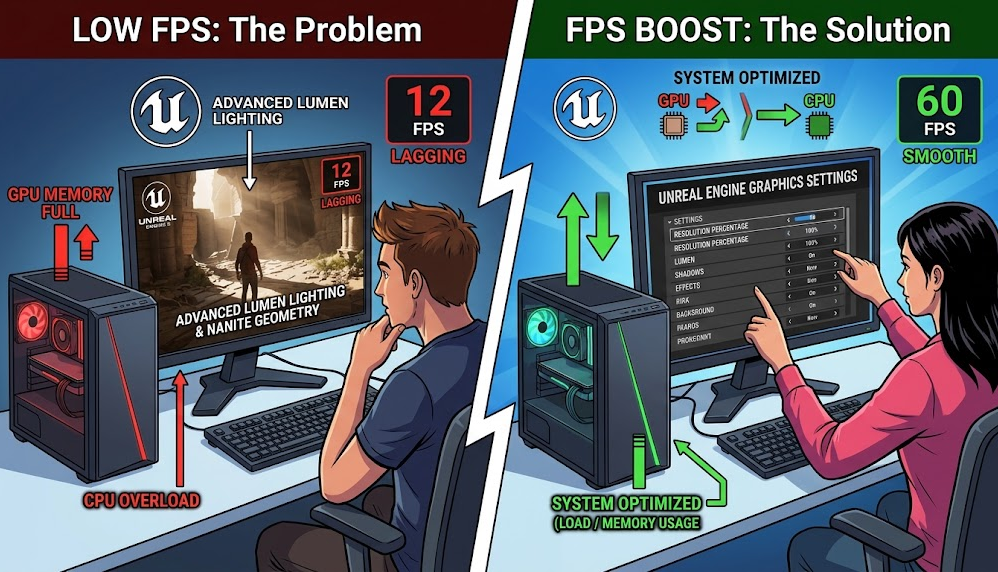
Unreal Engine 5 can make even a modest gaming PC look like it has suddenly become several years older. Lumen lighting, high-resolution rendering, detailed geometry, shadows and other demanding effects can consume GPU memory and processing power quickly. But low FPS does not always mean you need a new graphics card.
If you are wondering how to boost FPS in low-end PC for Unreal Engine 5 games, the most effective approach is to reduce the settings that consume the most GPU and CPU resources while keeping the image quality you actually notice. Start with resolution or screen percentage, then reduce Lumen, shadows, reflections, effects and view distance. Also make sure your GPU drivers, Windows power settings and background applications are not unnecessarily limiting performance.
There is no universal setting that doubles FPS in every UE5 game. Unreal Engine games can be limited by different parts of the PC, and the best solution depends on whether your GPU, CPU or available memory is the bottleneck.
Why Unreal Engine 5 games can be demanding on low-end PCs
Unreal Engine 5 gives developers tools for detailed worlds and sophisticated lighting, but those features can be expensive to render.
Two technologies are particularly relevant: Lumen and Nanite.
Lumen provides dynamic global illumination and reflections. Epic's documentation explains that Lumen uses multiple ray-tracing methods and has different scalability levels designed around different performance targets. On lower scalability levels, Lumen can be reduced substantially or disabled.
Nanite is Unreal Engine's virtualized geometry system. It can handle extremely detailed geometry efficiently in many situations, but that does not mean every UE5 game automatically runs well on old hardware. The game's lighting, shadows, effects, animation, CPU workload and resolution can still become bottlenecks.
This is why simply changing one setting rarely solves every performance problem.
First find out what is limiting your FPS
Before changing dozens of graphics settings, determine whether the GPU or CPU is the problem.
If your GPU is consistently close to full utilization while the CPU has spare capacity, lowering GPU-heavy graphics settings and rendering resolution is usually the best place to start.
If the GPU is not heavily utilized but one or more CPU cores are busy, lowering graphics quality may produce little improvement. Large open worlds, NPCs, physics, simulation and other game systems can create CPU limitations.
A useful way to think about it is:
- GPU bottleneck: Reduce resolution, screen percentage, lighting, shadows, reflections and effects.
- CPU bottleneck: Reduce view distance, crowd/NPC settings and other CPU-heavy options where available.
- VRAM limitation: Reduce texture quality and other settings that increase graphics-memory usage.
- System RAM limitation: Close background applications and make sure the game has enough available memory.
For developers and advanced users, Unreal Engine provides profiling tools such as Stat GPU and ProfileGPU for examining rendering costs. Epic specifically recommends these tools when analyzing Lumen performance.
For ordinary players, however, you can usually identify the biggest problem simply by monitoring GPU and CPU utilization while playing.
Lower the game's resolution first
One of the quickest ways to increase FPS is to reduce the resolution at which the game renders.
For example, moving from 1440p to 1080p can substantially reduce the number of pixels the GPU needs to process. Moving from 1080p to 900p or 720p reduces the workload even further, although image quality also falls.
If the game offers an internal resolution scale or screen percentage, that can be a better compromise.
Instead of changing the monitor's output resolution, the game can render internally at a lower resolution and upscale the result to the display resolution. Unreal Engine officially supports resolution scaling as part of its scalability system.
For example, a game displayed at 1080p might internally render below 1080p and reconstruct the final image.
The result can look considerably better than simply running a very low native resolution, depending on the game's upscaling technology.
Use Unreal Engine's upscaling options
Many UE5 games provide technologies such as Temporal Super Resolution (TSR) or third-party upscalers.
TSR is Unreal Engine's temporal upscaling technology. It uses information from multiple frames to reconstruct an image at the desired display resolution. Epic's documentation explains that lowering screen percentage reduces the amount of rendering work, although extremely low values can affect image quality and temporal detail.
If a game provides a choice between:
- Native resolution
- TSR
- AMD FSR
- NVIDIA DLSS
- Another temporal upscaler
test the available options on your hardware.
On a low-end PC, an upscaler can provide a useful performance improvement because the GPU renders fewer pixels internally.
Don't automatically choose the lowest setting
The lowest possible resolution is not always the best experience.
If 50% screen percentage produces high FPS but makes distant objects blurry, try a higher value. The goal is to find the lowest rendering resolution that still looks acceptable during movement.
Epic's TSR documentation specifically explains that screen percentage affects both rendering workload and the amount of information available for temporal reconstruction.
Reduce Lumen quality
If an Unreal Engine 5 game uses Lumen, it can be one of the first settings worth investigating.
Lumen handles dynamic global illumination and reflections, and Epic provides separate scalability controls for global illumination and reflections. Its documentation states that the lower scalability levels are intended for less powerful hardware, with the Low level disabling Lumen features.
Look for settings such as:
- Global Illumination
- Lumen Global Illumination
- Lumen Reflections
- Reflections Quality
- Dynamic Global Illumination
If your PC struggles badly, lowering these settings can be more useful than reducing relatively inexpensive settings.
You may notice changes in:
- Indoor lighting
- Reflections
- Indirect lighting
- Shadowed areas
- Surface appearance
That trade-off is often worthwhile on a low-end GPU.
Lumen does not always need to be completely disabled
If a game offers Low, Medium, High and Epic options, try Medium before turning everything off.
Epic's current Lumen documentation describes a Medium-quality configuration designed for lower-end PC hardware, while Low scalability disables Lumen features.
That means you may be able to retain some of the lighting system without paying the full performance cost of higher settings.
Turn down shadows
Shadows are another setting that can consume significant rendering resources.
Try lowering:
Epic → High → Medium → Low
depending on how much performance you need.
Shadow quality affects things such as shadow resolution, distance and detail. Higher settings generally produce cleaner and more detailed shadows but require additional rendering work.
If your game is already running near your target FPS, reducing shadows one step can be an easy way to gain some additional headroom without dramatically changing the overall appearance.
Lower reflections
Reflections can be particularly expensive in games using advanced lighting systems.
If you see settings such as:
- Reflections Quality
- Lumen Reflections
- Screen Space Reflections
- Ray-Traced Reflections
try reducing them.
Epic's Lumen documentation specifically separates global illumination and reflection scalability because they represent different performance costs.
Ray-traced reflections should receive particular attention on a low-end GPU. If a game allows you to disable ray tracing separately, turning it off can provide a substantial reduction in rendering workload.
Disable hardware ray tracing if your GPU is struggling
Ray tracing can produce more physically convincing lighting, shadows and reflections, but it comes with a performance cost.
Epic explains that Lumen can use hardware ray tracing when supported, while software ray tracing is available as a fallback. Hardware ray tracing provides higher quality in supported configurations but can have significant scene-update costs in complex scenes.
For a low-end PC, ray tracing should generally be considered an optional visual feature rather than a requirement.
If your game is struggling:
- Open Graphics Settings.
- Find Ray Tracing.
- Disable it.
- Restart the game if required.
- Compare the resulting FPS and image quality.
If the game becomes substantially smoother, you have identified an important performance cost.
Reduce view distance carefully
View distance controls how far objects remain visible and detailed.
Reducing it can help, particularly in large open-world UE5 games, but it can also produce obvious pop-in.
If your PC is CPU-limited, view distance may be more useful to reduce than some GPU-focused settings.
Look for:
- View Distance
- Object Distance
- Foliage Distance
- Vegetation Distance
- Draw Distance
You do not necessarily need to set everything to Low.
A Medium setting can be a good compromise because it reduces the amount of distant content without making the game world look empty.
Lower foliage and vegetation quality
Trees, grass, plants and other environmental objects can become expensive when there are large numbers of them.
Foliage settings can affect both GPU rendering and CPU work, depending on how the game implements its world.
If you are playing a UE5 open-world game and FPS falls dramatically while looking across a forest or dense outdoor environment, reducing foliage quality and distance is worth testing.
This is particularly useful when the GPU is already heavily loaded.
Reduce effects and volumetric effects
Effects such as smoke, fog, particles and volumetric lighting can be expensive.
Look for:
- Effects Quality
- Visual Effects
- Volumetric Fog
- Volumetric Lighting
- Particle Quality
- Fog Quality
Volumetric effects can be visually impressive, but they are rarely essential to gameplay.
If you need more FPS, reducing them can be a relatively sensible compromise.
Texture quality is different from resolution
One common mistake is assuming that lowering textures will automatically produce a large FPS increase.
Texture quality primarily affects VRAM usage and texture memory requirements rather than being a universal FPS switch.
If your graphics card has enough VRAM, reducing textures from High to Low may produce a relatively small performance change compared with reducing rendering resolution, shadows or lighting.
However, if the GPU is running out of VRAM, texture quality becomes much more important.
Signs of a VRAM problem can include:
- Severe stuttering
- Texture pop-in
- Long pauses while moving through the world
- Sudden drops in performance
- Very high graphics-memory usage
In that situation, lowering textures can improve stability even if the average FPS does not change dramatically.
Turn off motion blur
Motion blur usually has a much smaller performance impact than major lighting or resolution changes, but disabling it can make a low-FPS game feel clearer.
This is more about perceived responsiveness than raw performance.
At 30–40 FPS, heavy motion blur can make movement look softer. Turning it off may make the game appear sharper and easier to follow.
It is therefore a good quality-of-life adjustment, even though it should not be treated as a major FPS boost.
Use a sensible graphics preset as your starting point
If you have a low-end PC, start with the game's Low preset rather than manually changing every option.
Then increase individual settings that matter to you.
A practical starting point could look like this:
These are starting points rather than universal recommendations. Every UE5 game has different performance characteristics.
Don't use extremely low settings blindly
Lowering every setting to its minimum can create a game that looks considerably worse without solving the real bottleneck.
For example, if your CPU is limiting performance, reducing texture quality may accomplish very little.
Likewise, if your GPU is running out of VRAM, lowering view distance alone may not solve the problem.
The better strategy is:
Measure → identify the bottleneck → change the relevant setting → test again.
That approach is more reliable than applying a random collection of "FPS boost" tweaks.
Close unnecessary background programs
Before launching a demanding UE5 game, close applications that consume significant CPU, RAM or GPU resources.
Potential examples include:
- Web browsers with many tabs
- Video editing software
- Game launchers you do not need
- Background recording applications
- Overlays
- Large file transfers
- Other demanding programs
You do not need to close every background process in Windows. Avoid blindly terminating system processes because doing so can cause instability.
The goal is simply to free resources being unnecessarily consumed while you play.
Check your GPU drivers
Graphics drivers can affect game compatibility and performance.
Install the latest stable driver from your GPU manufacturer when appropriate, particularly if a game developer recommends a specific driver version.
For NVIDIA, AMD and Intel graphics, use the manufacturer's official driver software or download pages rather than third-party driver websites.
A driver update is not guaranteed to increase FPS, but it can resolve game-specific bugs, compatibility problems and rendering issues.
Check Windows power settings
Laptop users should pay particular attention to power modes.
A gaming laptop running on battery or a restrictive power profile may reduce CPU and GPU performance to conserve energy.
For demanding games:
- Connect the charger.
- Select an appropriate performance-oriented Windows power mode.
- Make sure the game is using the dedicated GPU if the laptop has integrated and discrete graphics.
- Check the laptop manufacturer's performance profile if one is provided.
Desktop users should also make sure that the GPU is properly powered and operating normally.
Make sure your PC is not overheating
A low-end PC does not necessarily have to run slowly.
But overheating can cause the CPU or GPU to reduce its clock speed. This is called thermal throttling.
If FPS starts reasonably high and falls after several minutes, temperature can be worth investigating.
Check:
- CPU temperature
- GPU temperature
- GPU clock speed
- CPU clock speed
- Fan operation
- Dust buildup
- Laptop cooling
Avoid using random registry tweaks or aggressive voltage modifications simply because an online guide promises more FPS.
Cleaning dust, improving airflow and ensuring fans are functioning properly are much safer first steps.
Use an FPS cap when necessary
More FPS is not always the best goal.
If your low-end PC constantly jumps between 35 FPS and 60 FPS, the experience can feel less consistent than a stable frame rate.
A frame-rate cap can sometimes make performance feel more predictable.
For example, if a particular game can reliably maintain around 40 FPS but frequently fluctuates between 35 and 55 FPS, targeting a stable value may produce a smoother experience than chasing a peak number.
The ideal cap depends on the game, display and hardware.
Why lowering resolution often works better than lowering textures
Consider a simple example.
At 1920 × 1080, the GPU renders roughly 2.07 million pixels per frame.
At 1280 × 720, it renders roughly 0.92 million.
That is a large reduction in pixel workload.
By comparison, reducing a texture setting does not necessarily reduce the number of pixels the GPU must shade.
This is why resolution scaling is one of the first things to test when a low-end GPU is struggling.
Epic's documentation confirms that Unreal Engine's screen percentage controls the rendering resolution and can reduce GPU workload by rendering internally at a lower resolution.
What about Unreal Engine console commands?
Some UE5 games expose console commands that can modify rendering behavior.
Advanced users may encounter commands such as:
Epic documents these scalability controls as part of Unreal Engine's rendering and scalability systems.
However, players should not assume every game allows every command.
Developers can restrict console access, override settings or configure their games differently. Some multiplayer games may also treat certain modifications differently from offline games.
For normal users, the in-game graphics menu should be the first choice.
Avoid questionable "FPS boost" tricks
Searches for low-end PC optimization often produce guides recommending registry edits, hidden Windows services, random launch parameters or unofficial configuration files.
Be cautious.
A tweak should have a clear technical reason behind it. If someone claims a registry change will "unlock" huge amounts of FPS without explaining what hardware limitation it addresses, there is little reason to trust it.
Also avoid:
- Downloading unknown FPS booster applications.
- Replacing game files with unofficial files.
- Using cheats disguised as optimization tools.
- Disabling important Windows security features.
- Installing modified GPU drivers from unknown sources.
- Changing dozens of settings at once without testing.
A genuine performance optimization should be measurable and reversible.
A practical low-end UE5 optimization order
If you want a simple process rather than dozens of individual tweaks, use this order:
Step 1: Start with Low or Medium
Apply the game's Low or Medium preset.
Step 2: Disable ray tracing
If available, turn it off first.
Step 3: Enable an upscaler
Try TSR, FSR, DLSS or another supported technology.
Step 4: Reduce screen percentage
Lower the internal rendering resolution gradually until you reach an acceptable frame rate.
Step 5: Lower Lumen
Reduce global illumination and reflections if the game uses Lumen.
Step 6: Reduce shadows
Move shadows from High to Medium or Low.
Step 7: Reduce effects
Lower volumetric fog, effects and particle quality.
Step 8: Reduce foliage and view distance
Use these settings if large outdoor areas are causing performance problems.
Step 9: Adjust textures if VRAM is limited
Do this particularly when you see stuttering or memory-related performance problems.
Step 10: Test for CPU limitations
If lowering resolution barely changes FPS, investigate CPU usage, background applications and CPU-heavy game settings.
What FPS should you target?
There is no universal minimum FPS that makes every game playable.
A competitive shooter can benefit greatly from a higher and more consistent frame rate.
A slower single-player game may feel perfectly acceptable at a lower frame rate.
The more useful goal is consistent performance.
For example:
- 30 FPS can be suitable for some cinematic single-player experiences.
- 40–60 FPS can provide a good balance on modest hardware.
- 60 FPS is a useful target for many PC games.
- Higher refresh rates are especially valuable in competitive games.
Do not sacrifice image quality unnecessarily just to display a large FPS number.
Can an SSD increase FPS in UE5 games?
Moving a game from a hard drive to an SSD does not automatically produce a major increase in average rendering FPS.
However, storage speed can affect loading times and, depending on the game's streaming system, asset-loading behavior.
This is particularly relevant to large modern games that continuously stream world assets.
An SSD should therefore be considered an important part of a modern gaming PC, but it should not be marketed as a universal FPS upgrade.
When software tweaks are no longer enough
Sometimes the hardware simply cannot meet the game's performance requirements.
If you have already:
- Lowered resolution
- Disabled ray tracing
- Reduced Lumen
- Lowered shadows
- Enabled upscaling
- Reduced effects
- Closed unnecessary programs
- Updated drivers
- Checked temperatures
and performance remains poor, the limiting component may simply be too weak for the game's workload.
At that point, a hardware upgrade may provide a much bigger improvement than another Windows tweak.
For a desktop, the most useful upgrade depends on the bottleneck. A GPU upgrade makes sense when rendering performance is the limitation; a CPU upgrade is more useful when the processor is holding back frame rates.
Frequently Asked Questions
What is the fastest way to boost FPS in a UE5 game on a low-end PC?
Start by lowering the rendering resolution or screen percentage and disabling ray tracing. If the game uses Lumen, reduce global illumination and reflections. These changes generally target much larger rendering costs than cosmetic settings such as motion blur.
Should I turn off Lumen for more FPS?
If your PC is struggling, disabling Lumen can improve performance, but the exact impact depends on the game and its implementation. Epic provides lower Lumen scalability levels specifically to reduce its cost on less powerful hardware.
Is 720p better than 1080p for low-end PCs?
If the GPU is the bottleneck, 720p can significantly reduce the number of pixels that need to be rendered. However, image quality is also lower. If the game supports an upscaler or resolution scaling, test that before immediately switching to 720p.
Why doesn't lowering every graphics setting increase my FPS?
You may be CPU-limited, VRAM-limited or limited by another part of the game's rendering pipeline. Lowering GPU-heavy settings has less effect when the CPU is already preventing the GPU from producing frames faster.
Does Unreal Engine 5 automatically optimize games for low-end PCs?
No. Unreal Engine provides scalability systems that developers can use to target different hardware levels, but individual games still depend on how their developers configure and optimize their content. Epic describes scalability as a way to adjust quality and performance across different hardware rather than an automatic solution for every game.
Conclusion
Getting better FPS from a low-end PC in an Unreal Engine 5 game is less about finding a secret "FPS boost" trick and more about understanding what the computer is struggling to render.
Start with the settings that can dramatically change GPU workload: resolution, screen percentage, ray tracing, Lumen, reflections and shadows. Then move to foliage, effects and view distance. If reducing these settings barely changes performance, stop lowering image quality and investigate whether the CPU, VRAM, system memory or thermals are actually responsible.
Unreal Engine's scalability system gives developers and players considerable control over rendering quality, while technologies such as TSR can trade some internal resolution for a higher-resolution output. Epic's own documentation confirms that screen percentage directly affects rendering workload and that Lumen has dedicated scalability levels for different performance targets.
The best result is not necessarily the lowest possible graphics preset. It is the highest visual quality your hardware can maintain at a stable frame rate. On a genuinely low-end PC, that may mean accepting lower resolution or turning off advanced lighting. That is usually a better compromise than relying on questionable optimization tools or unsupported system tweaks.