Finding a working SuperDisk parallel port driver can be surprisingly difficult today. The hardware is decades old, the original manufacturer support pages are no longer a dependable source for downloads, and modern Windows versions were designed long after parallel-port LS-120 drives disappeared from the mainstream PC market.
The good news is that driver archives still contain several packages for Imation SuperDisk/LS-120 parallel-port drives, including software intended for DOS, Windows 3.x, Windows 9x, Windows NT, Windows 2000, and in some cases Windows XP. The correct driver depends heavily on the exact SuperDisk model, the parallel-port adapter, and the operating system.
This guide explains where to look for the old drivers, how to identify the right package, how to install one safely, and what to do when Windows does not detect the drive.
What Are SuperDisk Parallel Port Drivers?
SuperDisk parallel port drivers are software components that allow an external LS-120 SuperDisk drive connected through a PC parallel port to communicate with the operating system.
SuperDisk was a removable-storage technology developed by 3M's storage business, which later operated as Imation. LS-120 drives could read and write 120MB SuperDisk media while also supporting conventional floppy disks on compatible models. Imation documentation for its SuperDisk products lists support for older operating systems including DOS, Windows 3.x, Windows 95/98, and Windows NT.
A parallel-port SuperDisk is different from an internal IDE/ATAPI LS-120 drive and different again from a USB SuperDisk drive. These interfaces can require different driver packages.
That distinction is one of the most important things to understand before downloading anything.
Where Can You Download SuperDisk Parallel Port Drivers?
There is no single modern universal SuperDisk driver that works across every operating system and every parallel-port model.
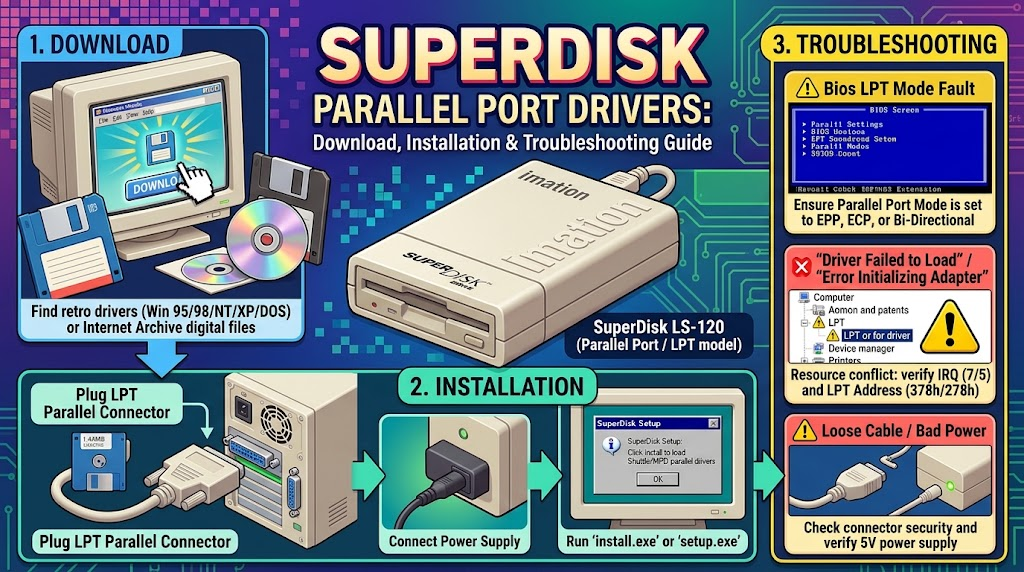
One surviving archive specifically lists “Parallel port LS-120 (Imation Superdisk) drivers” as LS-120_Parallel_Port_DriverPack.zip. The archive describes the package as containing drivers for DOS, Windows 3.x, Windows 9x, and Windows NT. It is hosted by the VOGONS Vintage Driver Library, a community-maintained collection of drivers for vintage hardware.
VOGONS Parallel-Port LS-120 Driver Archive
Another archival driver database lists several historically associated packages, including PPD4W2K.zip for Windows 2000 and SuperdiskExternal1_30.ZIP for Windows 95/98. It also lists DOS files such as Sd120ppd.sys. These names are useful when identifying an old installation disk or matching a driver to an existing archive.
A separate archived driver listing identifies SuperDisk_PPD_2002_XP.zip for the SCM PPort LS-120 Adapter / SD120/PPD, with Windows XP listed as the supported operating system. Because these are third-party archival sources rather than current manufacturer support pages, users should verify the model and inspect downloaded files before installation.
Which Driver Package Should You Choose?
Use the operating system and hardware interface as the starting point:
The last row is particularly important. Finding an old .SYS, .INF, or .EXE file does not mean that Windows 10 or Windows 11 can install it.
Before Installing: Identify Your SuperDisk Drive
Do not begin by downloading the first LS-120 driver you find.
First determine exactly what hardware you have.
Look for a model number on the drive, adapter, label, or original documentation. Names such as SD120/PPD, SD 120 PPD2, or SCM PPort LS-120 Adapter can help distinguish parallel-port hardware from other SuperDisk products.
You should also determine whether the drive is:
- Parallel-port/LPT connected
- USB connected
- Internal IDE/ATAPI
- PCMCIA/CardBus connected
These interfaces should not be treated as interchangeable.
For example, an archived Imation driver database separately identifies an external parallel-port driver, USB drivers, PCMCIA drivers, and internal LS-120 packages.
The physical connector is therefore a useful clue, but the model number is a better way to confirm the hardware.
Check the Parallel Port Before Installing the Driver
A driver cannot communicate with the SuperDisk if the computer itself is not properly exposing the parallel port.
On an older Windows system, open Device Manager and look under the ports or hardware categories for the parallel port, typically identified as an LPT port.
Microsoft's Windows documentation confirms that Windows has a system-supplied parallel-port driver layer and provides support for IEEE 1284-compatible parallel ports.
For older systems, the parallel port may also have configurable hardware resources such as its I/O address and interrupt. Historical SuperDisk documentation and troubleshooting material discuss common LPT configurations and the importance of matching the port configuration expected by the driver.
If your computer has a BIOS setting for the parallel port, check that it is enabled.
How to Install SuperDisk Parallel Port Drivers
The installation process depends on the operating system. There is no safe universal procedure for every version of Windows.
Installation on DOS
DOS-era SuperDisk drivers commonly use files that must be loaded through CONFIG.SYS or related startup configuration.
An archival driver listing identifies Sd120ppd.sys as a DOS-era component associated with SuperDisk parallel-port hardware.
A typical DOS installation therefore involves:
- Copying the appropriate driver files to the computer.
- Following the readme supplied with the specific driver package.
- Adding the required driver entry to
CONFIG.SYS, if instructed. - Restarting the computer.
- Checking whether the drive receives a drive letter.
- Testing with known-good media.
Do not copy a random SYS file into CONFIG.SYS without reading its documentation. DOS drivers can require specific switches, memory arrangements, or port settings.
Installation on Windows 95 or Windows 98
Windows 9x is generally a more appropriate environment for this type of hardware than current Windows releases.
Archived driver collections identify several SuperDisk parallel-port packages for Windows 95 and Windows 98, including SuperdiskExternal1_30.ZIP.
If the package includes SETUP.EXE, use the installation program supplied with that package. If it contains an .INF file instead, the correct installation procedure depends on the particular driver.
A sensible process is:
- Disconnect the SuperDisk drive.
- Install the archived driver package according to its documentation.
- Restart the computer if requested.
- Shut down the system if the instructions require it.
- Connect the SuperDisk parallel-port drive.
- Start Windows again.
- Check Device Manager for errors.
- Insert a known-good disk and test reading.
Older Imation documentation for SuperDisk hardware shows that installation procedures varied by operating system, with some older versions requiring a supplied driver diskette and a reboot after installation.
Installation on Windows 2000
Windows 2000 is notable because archival listings specifically associate PPD4W2K.zip with the SD120/PPD and external parallel-port SuperDisk hardware.
If you are restoring a Windows 2000 machine, use the package matching the exact hardware rather than assuming that a Windows 98 driver will work.
After installation:
- Restart Windows.
- Open Device Manager.
- Look for the SuperDisk or LS-120 device.
- Check for a yellow warning icon.
- Verify that the parallel port itself is functioning.
- Test with both a conventional floppy and, where available, an LS-120 disk.
Installation on Windows XP
Some archived sources identify a 2002 driver package called SuperDisk_PPD_2002_XP.zip for the SCM PPort LS-120 Adapter and SD120/PPD.
This does not mean every parallel-port SuperDisk works on every XP installation. Driver support can depend on the exact adapter and device.
If XP is your target operating system, check the model identification before installing the package.
Can SuperDisk Parallel Port Drivers Work on Windows 10 or Windows 11?
This is where expectations need to be realistic.
The original parallel-port SuperDisk drivers were created for operating systems from an earlier Windows era. Archived packages are specifically associated with DOS, Windows 3.x, Windows 9x, Windows NT, Windows 2000, and some Windows XP configurations.
Microsoft continues to document a parallel-port driver architecture in Windows, but that does not provide a modern manufacturer driver for a discontinued SuperDisk device.
For this reason, installing an unsigned or very old SuperDisk driver directly into a modern 64-bit Windows installation is not something that should be assumed to work.
If the objective is recovering files from old SuperDisk media, a more practical approach may be to use a compatible older computer or a suitable legacy operating system rather than spending significant time trying to force a 1990s-era driver into a current Windows installation.
What If Windows Detects the LPT Port but Not the SuperDisk?
This usually means that the computer can see the parallel port, but the SuperDisk-specific driver or device initialization is failing.
Work through the following checks.
1. Confirm the Cable
Parallel-port devices are sensitive to cabling and connection problems.
Make sure the cable is appropriate for the SuperDisk hardware and firmly connected at both ends. If possible, test another known-good cable.
2. Check the LPT Port Configuration
Verify that the LPT port is enabled in BIOS and visible to the operating system.
On older systems, resource assignments such as I/O addresses and IRQs can matter. Historical SuperDisk troubleshooting documentation discusses common LPT configurations including addresses associated with LPT1, LPT2, and LPT3.
Do not arbitrarily change these values. Record the original configuration first so you can restore it if necessary.
3. Check EPP/ECP Compatibility
Some high-speed parallel-port peripherals depended on enhanced parallel-port capabilities.
Microsoft's parallel-port documentation identifies support for different parallel-port operating modes, including EPP and ECP capabilities.
If an older SuperDisk driver expects a particular operating mode, changing the BIOS parallel-port mode may affect detection. However, there is no single setting that should be recommended for every SuperDisk model.
Use the driver documentation for your exact device as the primary reference.
4. Enable Legacy Plug and Play Detection Where Applicable
Microsoft documents a “Enable legacy Plug and Play detection” setting for parallel-port devices on applicable older Windows systems. The setting can be found through the parallel-port properties and may require a restart.
This is particularly relevant when Windows does not automatically recognize an older parallel-port peripheral.
The option is not a universal fix, but it is worth checking on systems where the setting exists.
5. Look for Device Manager Error Codes
Device Manager can provide a useful clue.
If Windows reports that a driver failed to start, that the device cannot start, or that resources are unavailable, record the exact error before changing anything.
Microsoft's documentation for the Windows parallel-port/WMI device information includes configuration-manager error states associated with driver, resource, and device-start problems.
Avoid repeatedly installing different drivers without identifying the error first. Doing so can make a legacy system harder to troubleshoot.
SuperDisk Drive Not Showing a Drive Letter
If the hardware appears to initialize but no new drive letter appears, check the media first.
Try a known-good standard 1.44MB floppy if the particular SuperDisk model supports conventional floppy media. Imation documentation states that compatible SuperDisk drives could read and write standard 1.44MB diskettes as well as 120MB SuperDisk media.
If a standard floppy works but a 120MB disk does not, the problem may involve:
- Damaged or incompatible media
- Media formatting
- A failing SuperDisk mechanism
- A driver limitation
- An incorrect driver package
- A hardware compatibility problem
Do not immediately format an old disk containing important files. Formatting can destroy recoverable data.
SuperDisk Driver Installation Fails With an INF or SYS Error
Old driver packages were written for operating systems with different driver models and security requirements.
If Windows refuses to install an old .INF or .SYS file, the problem may not be a missing dependency. The driver itself may simply be incompatible with the operating system.
This is especially relevant when moving from Windows 9x/NT-era hardware to modern 64-bit Windows.
Microsoft's current documentation describes the Windows parallel-port subsystem as a system-supported driver architecture, but device-specific functionality can still require a vendor driver.
In other words, Windows recognizing LPT1 does not automatically mean that Windows knows how to operate an LS-120 SuperDisk attached to it.
Should You Use Automatic Driver-Updater Software?
For this particular hardware, automatic driver-updater utilities are usually a poor starting point.
SuperDisk is discontinued hardware, and the problem is not normally that Windows needs a newer generic driver. The challenge is finding the correct historical device-specific software.
A generic driver utility may identify the parallel port but still fail to provide the SuperDisk driver required by the external LS-120 device.
For legacy hardware, matching the exact device model and operating system is generally more useful than searching for the newest possible driver.
Common SuperDisk Driver Mistakes
Several mistakes appear repeatedly when restoring old LS-120 hardware.
Installing an IDE driver for a parallel-port drive: An internal IDE SuperDisk and an external parallel-port model can require completely different software.
Using a USB driver: USB SuperDisk models have their own driver requirements and should not be confused with LPT versions.
Assuming Windows 11 compatibility: An old driver archive containing an .EXE does not mean that the program supports current Windows.
Changing BIOS settings randomly: EPP, ECP, and compatibility modes can affect legacy peripherals. Change one setting at a time and document the original configuration.
Formatting old media during testing: If the disk contains valuable data, test read access before attempting repair or formatting.
Downloading from an unidentified mirror: Legacy driver files can be difficult to authenticate. Prefer well-documented archival sources and scan downloaded files before opening them.
A Safer Approach for Recovering Data From Old SuperDisk Media
If your real goal is not simply to make the drive work but to recover files from old 120MB disks, treat the project as a data-recovery task.
First identify the drive model and interface. Then identify an operating system for which the original driver was designed. A functioning period-correct PC can sometimes be much easier to work with than a modern computer.
Before experimenting with valuable media:
- Test the drive with expendable media.
- Confirm that the drive can read a known-good disk.
- Avoid formatting the original disk.
- Copy important files to modern storage as soon as they are accessible.
- Keep the original media untouched whenever possible.
This approach reduces the chance that troubleshooting turns into accidental data loss.
Are SuperDisk Drives Still Useful?
For ordinary modern storage, no. A 120MB removable disk is extremely limited compared with current storage devices.
But SuperDisk hardware can still have a practical role in vintage computing. It may be useful for accessing old archives, transferring files to a period-correct PC, restoring vintage software, or recovering data that exists only on LS-120 media.
The original technology was also more capable than a conventional floppy drive. Imation's documentation describes SuperDisk drives as supporting both 120MB SuperDisk media and conventional floppy formats, depending on the model.
The value today is therefore mainly compatibility with historical systems and media rather than storage capacity.
Frequently Asked Questions
Where can I find SuperDisk parallel port drivers?
A surviving VOGONS Vintage Driver Library entry provides an archive specifically identified as Parallel port LS-120 (Imation Superdisk) drivers, with support files described for DOS, Windows 3.x, Windows 9x, and Windows NT.
Open the VOGONS LS-120 Parallel-Port Driver Archive
Does one SuperDisk driver work for every LS-120 drive?
No. Parallel-port, USB, IDE/ATAPI, and PCMCIA SuperDisk devices can use different drivers. Even parallel-port models may require different packages depending on the adapter and operating system. Archived driver listings show separate packages for different interfaces and Windows versions.
Can I use an old SuperDisk parallel-port driver on Windows 11?
Compatibility should not be assumed. The surviving driver packages are primarily associated with legacy Windows and DOS environments. Modern Windows may reject old drivers because of architectural and driver-signing differences.
Why does Windows recognize LPT1 but not my SuperDisk?
The LPT port and the SuperDisk are separate layers. Windows can recognize the parallel port while lacking the device-specific driver needed to operate the LS-120 drive. Microsoft documents the system parallel-port driver separately from device-specific parallel-port drivers.
Should I format a SuperDisk that Windows cannot read?
Not if the disk contains important data. First establish whether the problem is the drive, driver, interface, or media. Formatting can make data recovery more difficult or impossible.
Conclusion
The biggest mistake with SuperDisk parallel port drivers is treating them like ordinary modern Windows drivers. They are legacy software tied closely to particular LS-120 hardware and operating systems.
For restoration work, start by identifying the exact drive and interface. A parallel-port SuperDisk needs a different driver path from a USB or internal IDE model. Archived packages such as the VOGONS LS-120 parallel-port driver collection can provide historically appropriate files, while other archives identify Windows 95/98, Windows 2000, DOS, and Windows XP packages for specific SuperDisk configurations.
If the drive refuses to work on a modern PC, that does not necessarily mean the hardware is defective. The operating system may simply be too new for the original driver. In many cases, using a compatible legacy Windows or DOS environment is a more realistic route to accessing old SuperDisk media than forcing a decades-old driver into a current operating system.